
When using the LILINViewer app on an Apple device and you experience not all of the cameras on the system load correctly or some show video loss where there should be video, you will need to set the app to 'Low Bandwidth mode'.
Before following the guide below please ensure you are running LILINViewer v1.0.28 or higher
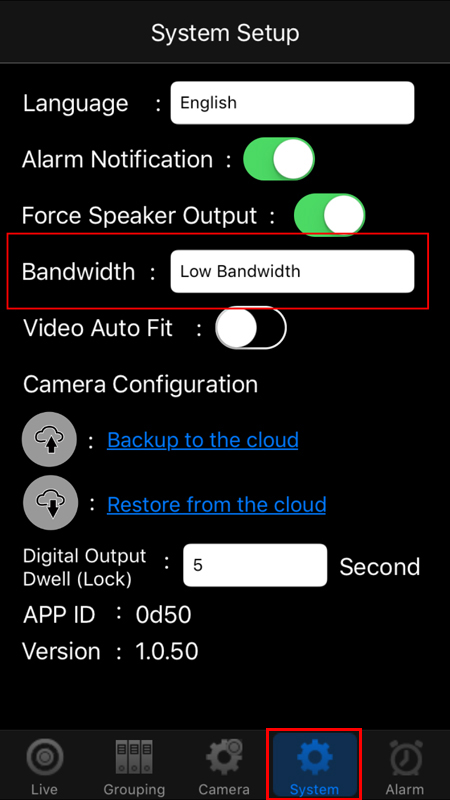
To enable low bandwidth mode:
Open the LILINViewer app and select 'System' from the bar across the bottom of the app. In the 'System' screen adjust the 'Bandwidth' option to Low Bandwidth and select 'Set' at the top.
***Additional Notes***
Please note this option is not available on the Android version of LILINViewer
0 Comments