
To verify that your DDNS address is working correctly, you will first need to determine the current public IP address of the site to which the DDNS should be directing traffic. This requires access to a PC connected to the same network as the LILIN device.
From the site where the DDNS address should be pointing:
- Open a web browser on a PC connected to the local network.
- Navigate to https://whatismyipaddress.com/
- The website will display the network's current public IP address, similar to the example shown below.
You will need to make a note of the IPv4 Address. In the example shown, the IPv4 address is 217.37.90.10.
This public IP address can then be compared against the IP address currently resolved by the DDNS hostname to confirm whether the DDNS service is updating correctly and directing traffic to the correct location.
Next, open a Command Prompt window and use it to ping the DDNS address.
To do this:
- Press Windows Key + R, type cmd, and press Enter.

- In the Command Prompt window, enter the following command:
For example:
The command will return the IP address currently being resolved by the DDNS hostname.
Compare this IP address with the public IPv4 address obtained from whatismyipaddress.com in the previous step.
- If the IP addresses match, the DDNS service is updating correctly and pointing to the correct location.
- If the IP addresses do not match, the DDNS record may not have updated, or there may be an issue with the DDNS configuration on the router or device.
This simple test can help confirm whether your DDNS hostname is correctly directing traffic to the intended site.
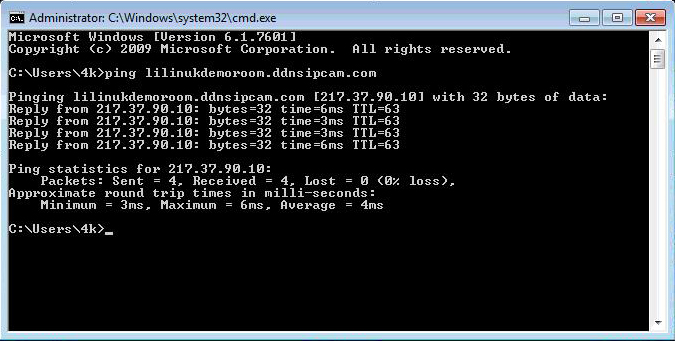

If the IP addresses match, your DDNS service is functioning correctly. This confirms that the DDNS hostname is resolving to the current public IP address of your site and should be directing traffic to the correct location.
If the IP addresses do not match, your DDNS service is not functioning correctly. This indicates that the DDNS record is either not updating or is pointing to an incorrect public IP address.
If your DDNS address is not resolving to the correct IP address, it is recommended that you submit a Technical Support Request for further assistance. A member of the LILIN Technical Support Team will investigate the issue and provide guidance on resolving the DDNS configuration.
When raising a support request, please include the following information where possible:
- The DDNS hostname being used
- The current public IP address of the site
- The IP address returned when pinging the DDNS hostname
- The model number of the LILIN device
- Screenshots of the DDNS configuration (if available)
Providing this information will help the Technical Support Team diagnose the issue more quickly.
0 Comments